Repair Request Form Link
https://forms.gle/4Cd3Eja6vbiXmUqn6
Repair Status Inquiry
https://docs.google.com/spreadsheets/d/1CqKZOJoepCrB-s8KFD3XMKSFwIlR8ysx8as9ksmaze4/edit#gid=1752767286
Dorm Network Repair Instructions
- Please read the repair process before submitting.
- This form handles network issues only. For furniture or electrical repairs, please contact the dormitory front desk.
- Prepare required information before submitting a repair request.
- The IT department will contact you via Teams or school email. Please remember to check.
Windows Repair Procedure
Please download NetworkDebug.zip and submit the collected information with your repair request.
Download link: NetworkDebug.zip
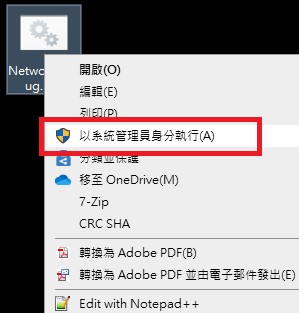
(1) Download → unzip → right‑click → Run as administrator
(2) Go to the Downloads folder to retrieve the generated file.
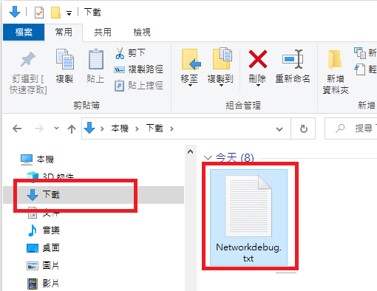
(3) When submitting a repair request, upload this file. If unable to upload, open the file and upload a photo of its contents.
Mac Repair Procedure
Please collect required information and upload photos through the repair webpage.
(1) Go to “System Preferences” → “Network”
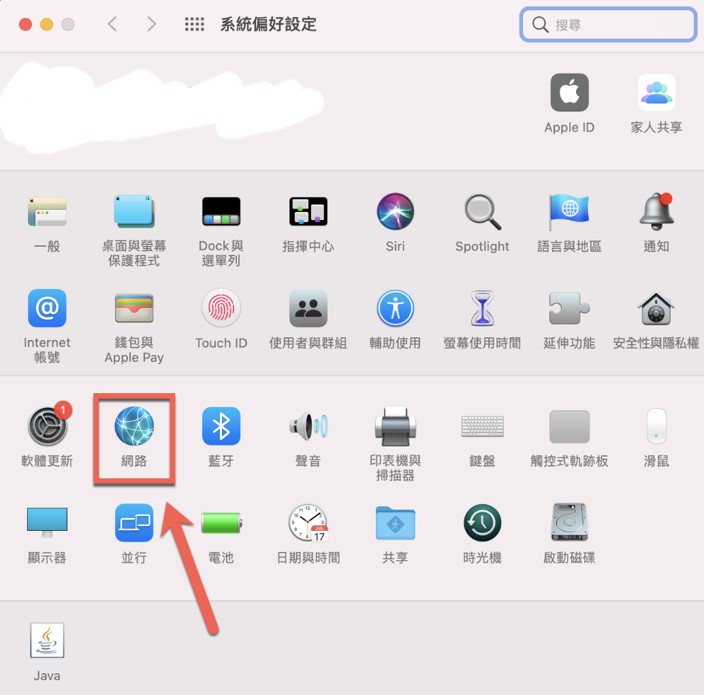
(2) Click “Advanced”
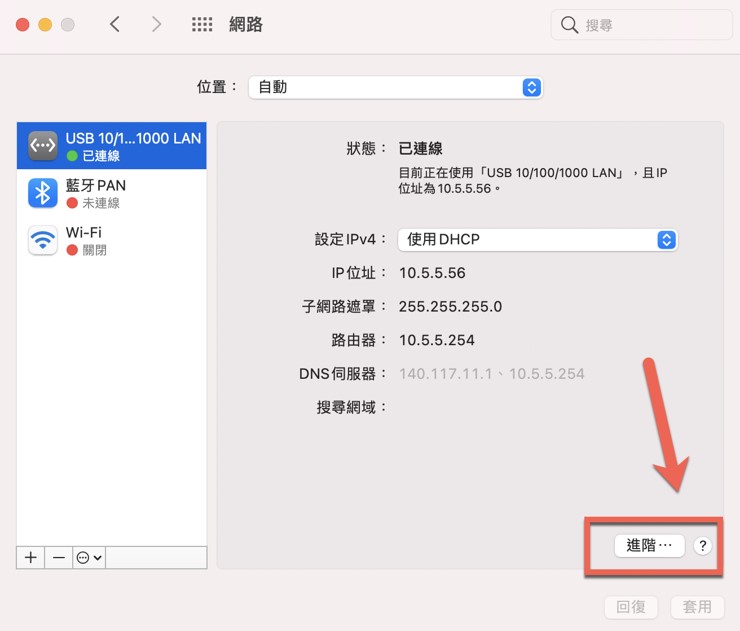
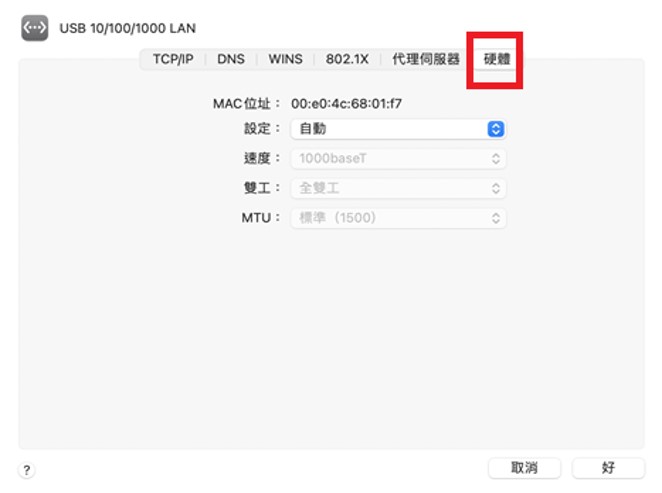
(3) Select “Hardware” and take a photo or screenshot (example image below)